

Help Desk: Support Success
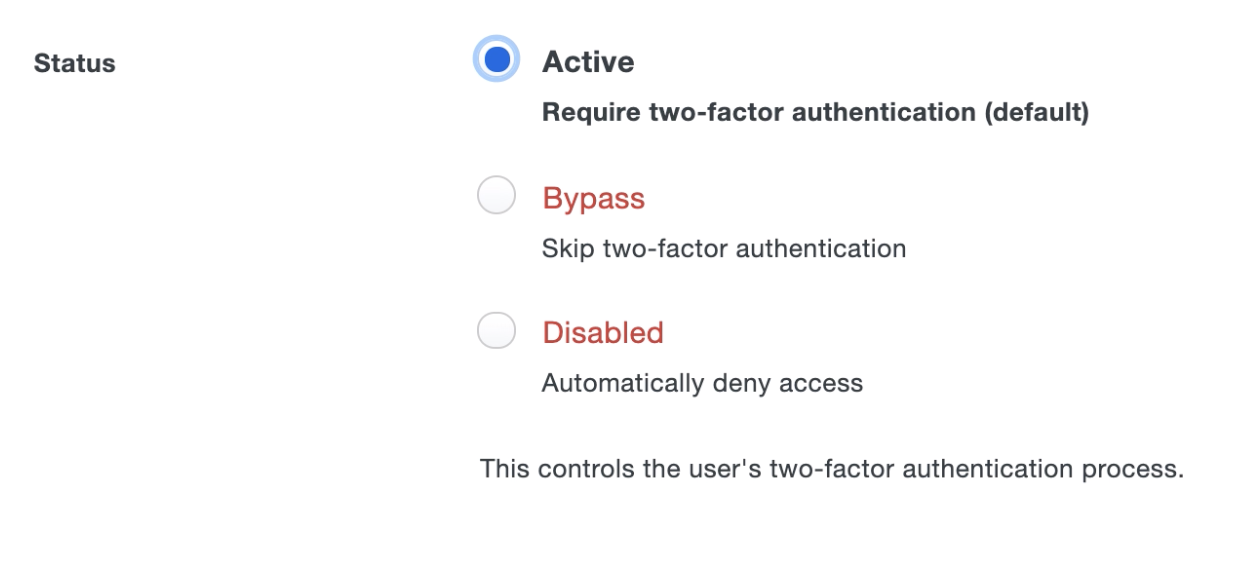
Active
The user is required to use Duo two-factor authentication at log on for any Duo-protected application. These users should see the Duo Prompt for web-based applications and the specific two-factor experience (e.g., auto-push) for non-web-based applications. This has no connection to an end-user’s enrollment status, and Active end-users may be either partially or fully enrolled.
Active ≠ Duo Mobile Activation
Despite the similar name, an Active user status does not mean that the user has activated Duo Mobile. To determine whether a user has activated Duo Mobile, scroll select the name/phone number on User or 2FA Devices page. If activated, Using Duo Mobile will be indicated underneath the green Duo logo.
Bypass
The user is not required to use Duo two-factor authentication at log on and is not subject to any policy setting that restricts access. These users cannot enroll in Duo and will not see the Duo Prompt for web-based applications or experience the specific two-factor experience (e.g., autopush) for non-web-based applications. Help Desk role admins cannot assign a user to Bypass status, but may be able to issue a Bypass code.
Disabled
The user is not permitted to use Duo two-factor authentication, and log on is denied. Instead of the Duo Prompt, users authenticating to web-based applications will see a message that states “Your two-factor account is disabled. Contact an administrator for assistance.”
Locked Out
This status appears only when an end-user’s account has been temporarily disabled due to them exceeding the number of failed authentication attempts. This status cannot be manually set by an admin. Help Desk and User Manager role admins can change a Locked Out user's status back to Active if you need to restore access to a user who has been locked out. The lockout threshold settings can be configured by administrators with an Owner or Administrator role, and are customizable for your organization.
Helpful Resources
How to change user status - Do you have an end-user that's locked out? Learn that and more on our guide to changing user statuses.
Managing Duo Users - Comprehensive guide to managing Duo Users in the Admin Panel.
Administrator's Guide to Duo Mobile Activation - Remember, Active user status does not mean that the user has activated Duo Mobile. For help with Duo Mobile activation, check out our documentation on Duo Mobile activation.
User Policy Settings - Users in Active status are required to pass 2FA under normal conditions, but Duo does support the ability to change this at an administrative level by modifying access control settings called Policies. If a Policy setting ever denies a user access to an application that they need, consult a Duo Administrator at your organization.
All users that appear in the Duo Admin Panel are either fully or partially enrolled, depending on whether a device is associated with their account. End-user accounts have four different statuses that determine whether the user is permitted to use two-factor authentication. You can check a user's account status in the Admin Panel by navigating to the Users tab.

Note: This course may no longer be accurate!
This course is an archived version saved for my professional portfolio. While much of this information is still true, the content is not guaranteed to be accurate. Current Duo administrators can find up-to-date resources at duo.com/docs and help.duo.com.